A Workaround for Kali's Pre-Built VMware Image Multi-Monitor Issues
If you’ve recently tried using multiple monitors with Kali’s pre-built VMware virtual machine image, you may have run into some annoying display behavior: mirrored displays, offset mouse clicks, and a guest that refuses to scale properly after exiting fullscreen. On my setup, this showed up with kali-linux-2025.4-vmware-amd64 on VMware Workstation 25.0.0.
This is a workaround, not a polished upstream fix. It solved my problem, which means it still has every right to invent a few brand-new ones for somebody else. Use at your own risk.
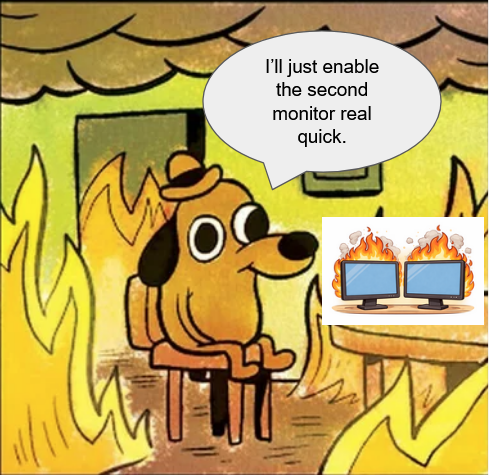
The Problem
VMware Workstation supports multiple monitors for guest VMs, but Kali Linux’s default display helper, xautoresize, appears to work best for simple auto-resize behavior. It listens for X11 RandR events and runs xrandr -s 0 to switch to screen size index 0 (the first or preferred mode).
That works fine for basic resizing, but in my testing it fought with extended multi-monitor layouts.
When I enabled a second monitor, I saw three problems:
-
Display mirrored instead of extended - My extended layout kept getting reset. Based on how
xautoresizebehaves, it appears to be reapplying a preferred mode instead of preserving the multi-monitor layout I wanted. -
Mouse clicks were offset - Click targets drifted away from the visible pointer position as I moved across the screen.
-
No auto-scaling when exiting fullscreen - The display stayed at the fullscreen resolution, leaving scrollbars behind. Current public bug reports around Kali/Linux guests on VMware Workstation 25.x suggest that resize or EDID events may not be delivered reliably in this configuration, so the guest does not always update its display modes correctly.
On my test VM, simply disabling xautoresize restored monitor extension, but I lost the auto-resize behavior I actually wanted.
The Solution
After spending longer than I’d like to admit arguing with xrandr, I turned to Claude to help research and create vmware-autolayout, a workaround that handles both scenarios.
For multiple monitors: It extends the desktop automatically, positioning displays side-by-side by applying the full xrandr layout in a single command.
For single monitor: It auto-resizes to fit the VMware window, replicating the useful behavior of xautoresize.
The script works in three parts:
-
One-time setup - Kills
xautoresize, disables its autostart, enablesresolutionKMSin VMware Tools config, and applies the extended layout immediately. -
Background watcher - Uses
xevto listen for X11 RandR screen change events. When displays change (monitors added or removed, fullscreen toggled, resolution changed), it automatically applies the correct layout. -
Persistence - Installs an XDG autostart entry so the watcher runs on every login. No manual intervention needed after initial setup.
The watcher is event-driven rather than polling, so it uses minimal resources and responds quickly to changes.
Constraints and Limitations
-
X11 only - The script relies on
xrandrandxev, which are X11 tools. It won’t work on Wayland sessions. -
VMware only - The script uses
systemd-detect-virtto confirm it is running in a VMware virtual machine and exits otherwise. -
Horizontal layout only - Displays are arranged left-to-right. Vertical stacking or custom arrangements aren’t supported.
-
Two monitors tested - I only tested this with dual-monitor setups.
-
XFCE-aware - When running under XFCE, the script saves display settings into XFCE’s display configuration using
xfconf-query. Other desktop environments may still work, but they do not get that XFCE-specific persistence step. -
Requires open-vm-tools - The VMware Tools service must be installed and running for display hotplug behavior to work as expected. This is pre-installed on the official Kali VMware images.
Tested Environment
This workaround has only been tested in the following environment. I have not validated it on other Kali versions, other Linux distributions, other VMware products, Linux hosts, or different desktop environments beyond what is listed here.
- Windows host
-
Kali guest:
kali-linux-2025.4-vmware-amd64(pre-built VM image) - VMware Workstation: 25.0.0
- Pre-built Kali VM upgraded to latest hardware version in VMware (
VM -> Manage -> Upgrade Virtual Machine)
Getting Started
Fair warning: this script worked on my machine. Yours might spontaneously combust, summon a mass of confused xrandr processes, or simply do nothing at all. Use at your own risk, keep backups, and maybe have a fire extinguisher handy.
git clone https://github.com/willlindsey05/vmware-kali-multimonitor-fix.git
cd vmware-kali-multimonitor-fix
chmod +x vmware-autolayout.sh
./vmware-autolayout.sh
The script prompts for sudo once, then handles everything automatically.
What to Expect
If everything goes according to plan:
- Multiple monitors should automatically extend side-by-side instead of mirroring
- Single monitor should auto-scale when you exit fullscreen or resize the VMware window
-
Logs are written to
/tmp/vmware-autolayout.logif you need to troubleshoot
If you’re running Kali in VMware with multiple monitors, this should save you from manually rebuilding the display layout every time something changes.
Uninstalling
Changed your mind? Want to return to the default behavior and pretend this never happened? No hard feelings.
./vmware-autolayout.sh --uninstall
This removes the autostart entry and restores xautoresize to its former glory.
Enjoy Reading This Article?
Here are some more articles you might like to read next: